
How to Buy a Laptop That Lasts: A Practical Longevity Guide
Spec sheets sell laptops, but design and support decide how long one lasts. A practical buyer's guide to the choices that actually matter for the long haul.

On this page
A laptop is one of the few purchases people make hoping not to think about it again for five years. Yet the buying conversation is dominated by numbers that describe an hour of peak performance, not the years of ordinary use that follow: machines that look fast on a spec sheet and feel tired long before their silicon is obsolete.
Related reading: Google's 'Googlebook' Laptops Want Android Users to Buy a Premium PC for Gemini · Apple Puts Touch on the Mac at $2,899, Reversing a Long Resistance.
This guide is about buying for the long haul, the engineering and support decisions that determine whether a laptop still feels good to use long after launch coverage fades. It depends on understanding what you are actually buying, not on any particular model or price.
A laptop is a system, not a spec sheet
A laptop's useful life is set by its weakest link, and the weakest link is rarely the one with the biggest number. A fast processor throttled by a thin cooler, 8GB of memory you cannot expand, or a battery glued under the mainboard will each end a machine's comfortable life sooner than an ageing CPU will.
So the right question is not "which laptop has the best specs?" but "which laptop's constraints can I live with, and which can I change later?"
CPU and GPU: read the tier, then read the power budget
What the names actually signal
Processor names are a tier and a role, not a score. Intel's mobile suffixes tell you what the part was designed for: U and Y are power-efficient chips for thin laptops, P targets thin-and-light performance, H is high-performance mobile, and HX/HK are the highest-performance, unlocked parts found in large gaming and workstation chassis. The tier number (Core 3/5/7/9 or Core Ultra 5/7/9) sorts performance within a generation, and the leading SKU digit usually indicates the generation. The suffix matters at least as much as the tier: an efficient U-series chip in a well-cooled body can feel better to live with than a hot H-series chip crammed into something too thin to feed it.
The wattage trap
The single most misunderstood number in laptops is power. The same GPU name can be configured across a very wide range of power limits, so the specification sheet hides a large performance difference. A part advertised at its maximum wattage may never reach that figure in real work, and past a point, adding power brings flatter gains while the fans get louder.
For a buyer, bench-racing model names is close to useless. What matters is the sustained power the chassis can actually cool, which reviewers measure and manufacturers rarely advertise. A mid-tier part in a generous chassis routinely outlasts a flagship part in a cramped one.
Buy for the workload, not the peak
Peak scores describe seconds; sustained clocks, memory capacity and cooling describe years. Compare only the first and you will overpay for the second.
RAM: how much, and can you add more later?
Memory is where a laptop most often becomes prematurely obsolete. Two questions matter, in order.
Is it soldered or socketed? Many thin-and-light designs solder memory directly to the mainboard. Socketed SODIMM slots let you add or replace modules years later; soldered memory is whatever you bought, forever. If memory is soldered, configure for the end of the machine's life, not its first month.
How much do you actually need? For browsing, documents and video, 8GB is a working minimum and 16GB is comfortable headroom. For heavy multitasking, software development, photo editing or running local AI models, treat 16GB as a floor and consider 32GB or more. If the memory is soldered, err high; the upgrade you cannot do later is the expensive one. Also check for dual-channel operation, matched modules meaningfully help integrated-graphics and memory-bound work.
Check the service manual before you buy
Manufacturers publish service manuals and upgrade guides for most business-class machines. A quick read tells you whether RAM and storage are user-accessible, what the maximum supported memory is, and whether opening the case affects your warranty.
Storage: type, speed and access
Storage decisions are simpler but still decisive. Avoid eMMC storage on anything you intend to keep: it is slower and typically soldered, and it is the classic reason a budget laptop feels sluggish by year two. An NVMe SSD is the baseline for a machine meant to last.
The bigger issue is access. An M.2 slot you can reach through the bottom panel turns "I'm out of space" from a reason to replace the laptop into a ten-minute task. Soldered storage removes that option, so if the drive is fixed, buy enough capacity that you will not be replacing the machine when it fills. For large photo, video or code libraries, expandability is worth more than the fastest read speed on the box.
Repairability and parts availability
Repair is the most direct lever on lifespan, and it is mostly a design choice. iFixit tears down laptops and scores them from zero to ten, weighting its score heavily toward how easily a device comes apart and goes back together. In its current model, roughly 80% of the score is design for repair, with the rest split between a free public service manual and OEM parts availability; without a public manual, a device cannot score above 9.0.
That framing is useful even if you never pick up a screwdriver. A machine is more repairable when it uses standard fasteners instead of adhesive and proprietary tools, when the battery and keyboard are separately replaceable, and when ports and storage are modules rather than soldered to the mainboard. Software barriers count too: parts pairing, where a replacement component is locked out without manufacturer-only software, can defeat an otherwise easy physical repair.
Standards bodies now treat this as a purchasing criterion. EPEAT's criteria for computers address design for durability, repair and reuse, availability of replacement components and repair services, long-life batteries, firmware access, and the prohibition of parts pairing as a repair barrier. The US EPA's greener-electronics guidance lists design for longevity, repair and upgradeability among the attributes buyers should look for. If a manufacturer publishes a service manual and sells parts, that is a strong signal; if it does neither, assume the laptop is a sealed unit.
Battery: design, cycles and replacement
Lithium-ion batteries are consumable, and their decline is the most common reason a functioning laptop starts to feel old. Charge cycles are the currency: a cycle is a cumulative full discharge, so several partial discharges add up to one. Apple's guidance is a useful industry benchmark, a laptop battery is designed to retain up to 80% of its original capacity at its maximum cycle count, and replacement is recommended once that count is reached. PCWorld notes that most laptop batteries manage roughly 500 to 1,000 cycles before capacity becomes a real problem.
Three design details separate a battery-friendly laptop from a frustrating one:
- Replaceability. A battery held by screws and a connector is a straightforward replacement; one bonded under the mainboard is a major repair.
- Charge management. Firmware that caps charging at a lower level for desk-bound use meaningfully slows calendar ageing; the capability is worth looking for.
- Capacity reporting. Vendor tools, the BIOS/UEFI and the Windows battery report expose design capacity, current capacity and cycle count, so you can measure health rather than guess.
On a used machine, read those numbers before you buy. A battery reporting well below its design capacity, or a cycle count near its rated maximum, tells you a replacement is coming, and whether it is realistic depends on the repairability discussed above.
The display: the part you actually look at
The screen is the component you interact with constantly, and the one most often reduced to a single number. Four attributes matter for longevity.
Panel type. IPS LCDs offer stable colours and wide viewing angles. OLED panels deliver perfect blacks and fast response but historically carry brightness-limited lifetime and flicker caveats, and draw more power at a given brightness. Neither is universally better; the answer depends on your work and how long you keep the machine.
Brightness. Measured in nits, brightness determines whether the laptop is usable outdoors and near windows. Mainstream panels often land in the 300–400 nit range, which is fine indoors. Laptop Mag's practical guidance is that about 450 nits is a sensible minimum for ambient daylight, with direct sunlight pushing the requirement toward 1,000 nits. A bright panel is one of the few upgrades that stays valuable for the whole life of the machine, because ambient light never gets dimmer.
Colour and flicker. If colour accuracy matters (photo, video, design) look for measured coverage and factory calibration, not only a panel marketing name. Separately, many panels dim by rapidly switching the backlight, a technique called pulse-width modulation. Notebookcheck documents that low-frequency PWM can cause eye strain, headaches and nausea in sensitive users, and its rankings let you check a specific display before buying.
Resolution versus power. Higher resolution looks sharper but costs battery life and can make scaling awkward. For most laptop sizes, a moderate high-density display is the sweet spot; chasing a very high pixel count on a small battery buys a beautiful screen that lasts a short time.
Thermals and sustained performance
Every laptop throttles; the question is how far and how gracefully. Peak turbo clocks are temporary by design, and a machine settles at an equilibrium set by its cooling system. When a chassis cannot remove heat fast enough, the processor drops below its advertised clock to protect itself, and performance in long tasks (exports, compiles, long gaming sessions) falls well short of the short benchmark that sold you the laptop.
This is why reviews that measure a repeated workload matter more than specification tables. Look for sustained benchmarks, surface temperatures and fan noise, not a single peak score. Thinness, silence and sustained performance form a three-way trade-off; decide which one you can sacrifice, because no design gets all three.
Repairability means making it possible (and ideally easy) to repair a product., iFixit
Ports, docking and the desk
Ports are not retro nostalgia; they are flexibility you either buy now or buy through adapters forever. A machine with too few ports forces a dock for even simple desktop setups, which is fine if the laptop supports a good one.
USB-C is a connector, not a speed or feature guarantee, capabilities depend on the USB generation and on whether the port implements Thunderbolt. A USB-C port can carry data, video and power, and a USB-C dock will typically drive one 4K display (or two 1080p), connect peripherals and charge at up to 100W. Thunderbolt adds bandwidth and guarantees, dual 4K display support, external-GPU capability, and mandatory laptop charging on at least one port on Thunderbolt 4 machines. If you work at a desk, one cable that handles monitor, peripherals and charging is a genuine daily quality-of-life feature.
Firmware, drivers and OS support windows
Hardware lasts only as long as software keeps supporting it. Microsoft's lifecycle policy gives each Windows release a defined end-of-support date, after which devices no longer receive technical assistance, software updates or security fixes, even though the OS keeps running. A laptop that cannot run a supported OS is effectively at the end of its life regardless of how fast its processor still is.
Three things to verify:
- OS support runway. How many years of updates does the current OS edition get, and can the machine run the next release?
- Firmware and driver cadence. Business-class lines tend to receive BIOS, firmware and driver updates for years; consumer lines vary enormously. Firmware updates are how security fixes reach components the OS cannot patch.
- Open-source friendliness. For Linux, check kernel compatibility and firmware-update support. A machine with great specs and no working suspend or Wi-Fi driver is not durable for you.
Warranty, serviceability and resale
Warranty and service terms shape the economics of keeping a laptop. On-site or depot service, accidental-damage coverage and a published parts channel all matter more for a five-year plan than a slightly faster chip. Business-class laptops are often unglamorous but come with exactly these advantages: documented service procedures, longer parts availability and a deeper pool of technicians.
Resale value is the flip side. Machines from lines with strong business support and a reputation for durability hold value longer, which lowers the true cost of ownership when you eventually sell or hand one down.
Match the machine to the workload, not the spec sheet
Specifications only matter relative to what you do:
- Browser, documents, email, video: prioritise a good screen, comfortable keyboard, long battery life and enough memory for your tab habits. CPU tier is largely irrelevant.
- Software development: prioritise memory, storage, a keyboard you enjoy, and Linux or virtualisation compatibility; sustained CPU matters more than peak for builds and test suites.
- Photo and video: prioritise colour-accurate, bright displays, fast storage and memory bandwidth; check sustained performance under long exports.
- Gaming and 3D: prioritise cooling and the GPU's real sustained power, not the name; a mid-tier part in a big chassis beats a flagship in a thin one.
- Travel and field work: prioritise weight, battery life, brightness, ports and ruggedness; accept less peak performance in exchange.
The pattern is consistent: the parts you cannot change later (screen, keyboard, cooling, soldered memory, OS support) deserve the most deliberation, while the parts you can change later (storage, socketed memory, battery) can be modest at purchase.
The decision checklist
Can I add RAM later?              → if no, buy the capacity you'll need in 5 years
Can I replace storage later?      → if no, buy more capacity than you need today
Is the battery screw-fastened?    → if no, budget for a harder replacement
Is there a public service manual? → yes = parts + repair are realistic
Are there parts-pairing locks?    → yes = repairs get vendor-only and expensive
What sustained power can it cool? → read repeated-workload reviews, not peak scores
Is the panel bright enough?       → ~450 nits for daylight, more for sun
Any PWM flicker?                  → check measurements if your eyes are sensitive
Is the OS supported for years?    → and can it run the next release?
Does one USB-C/Thunderbolt cable  → if not, budget for a dock and check
power the whole desk setup?          what it can drive and charge
Does the warranty match how      → on-site, parts and service matter more
long I plan to keep it?              than a slightly faster chip
What to watch
The direction of travel favours buyers who care about longevity. Right-to-repair rules and purchasing standards increasingly reward designs that are easy to service, battery longevity is becoming a labelled criterion rather than a footnote, and a growing number of vendors treat modularity as a selling point rather than an afterthought.
Until then, the edge goes to the patient buyer. Read the service manual, check the sustained reviews, verify the support window, and decide which compromises you can live with for five years. That is a slower way to buy a laptop. It is also the way that ends with one you keep.
The five-year question
Before you pay, ask of each major component: can I change it, and if not, will it still be good enough in five years? The parts that fail that question are the ones to spend on.
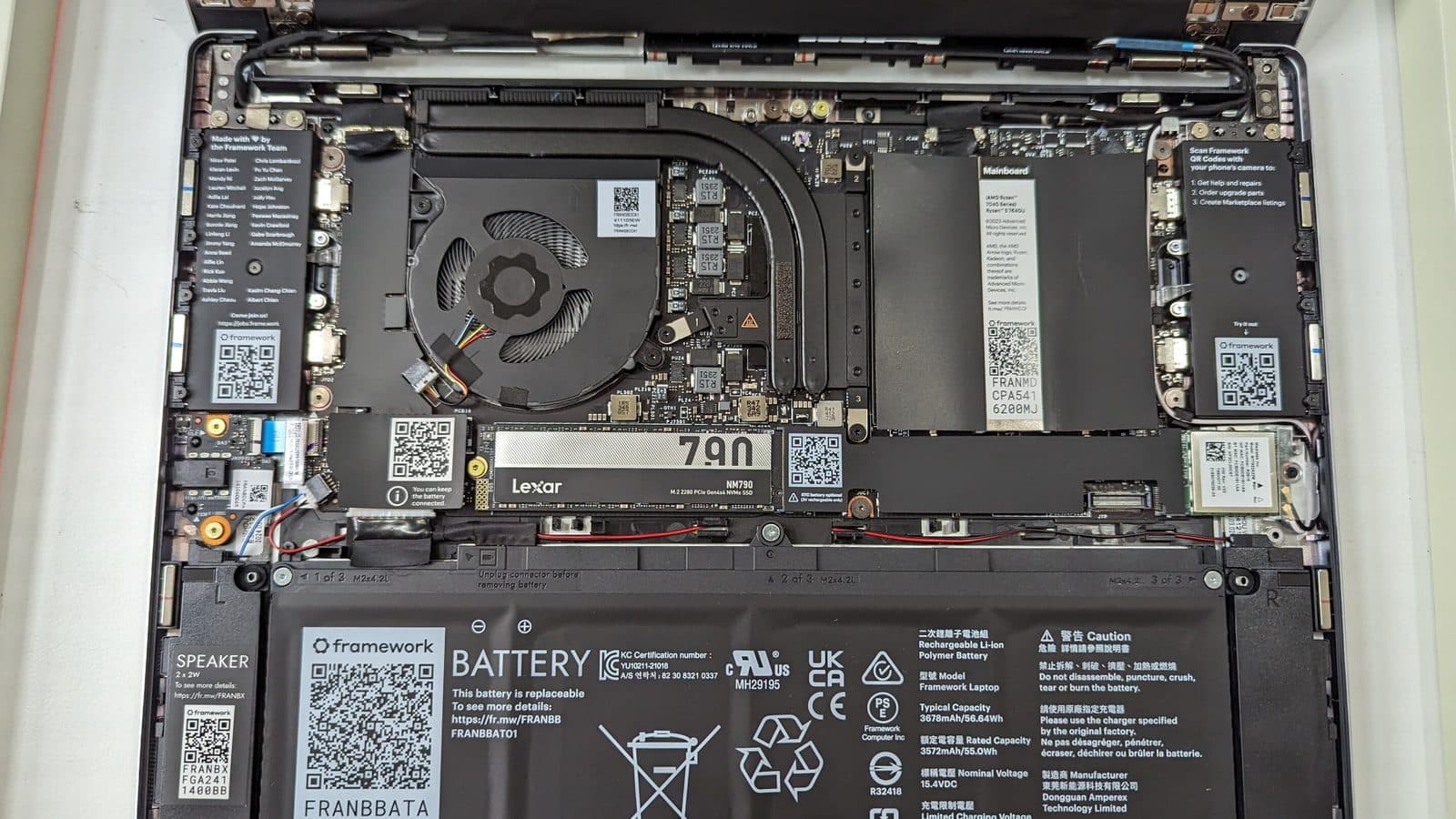
Cover image: a Framework Laptop 13 opened to show its motherboard, replaceable battery, cooling and storage bays; photographed by Ogidya via Wikimedia Commons, licensed under CC BY 4.0, cropped to 16:9.
Tags

TPW Editorial
Editorial Team
TechPastWeek's editorial team reports and edits every story we publish. We research each piece against primary and credible secondary sources, and a human editor reviews and signs off before it goes live.